
How to put Foresight Agents to work
Foresight Agents allow you to move from a research question to a fully populated trend radar and a summarizing reports in under an hour. Follow these steps to initiate your first automated research project.
Please be aware:
- Availability: Foresight Agents are a subscription-based feature and may not be included in all plans.
- Permissions: Only Administrator users have the permission to create new radars and launch Foresight Agent tasks.
- Capacity: This is a capacity-based feature. Your plan includes a set number of Foresight Agent tasks, please be mindful of your usage, as each project launched counts toward your total capacity.
Step 1: Create a new radar
- Navigate to the Radar view in your FIBRES environment.

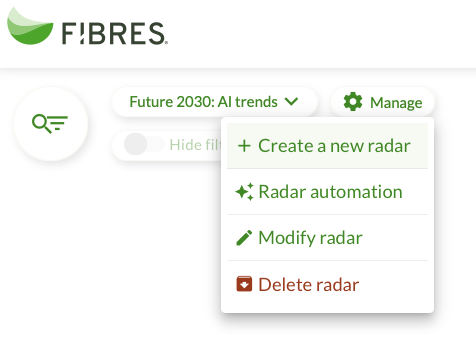
- In the upper left corner of your screen, click the "Manage" and select "+Create a new radar" to start
-
Step 2: Define your research brief
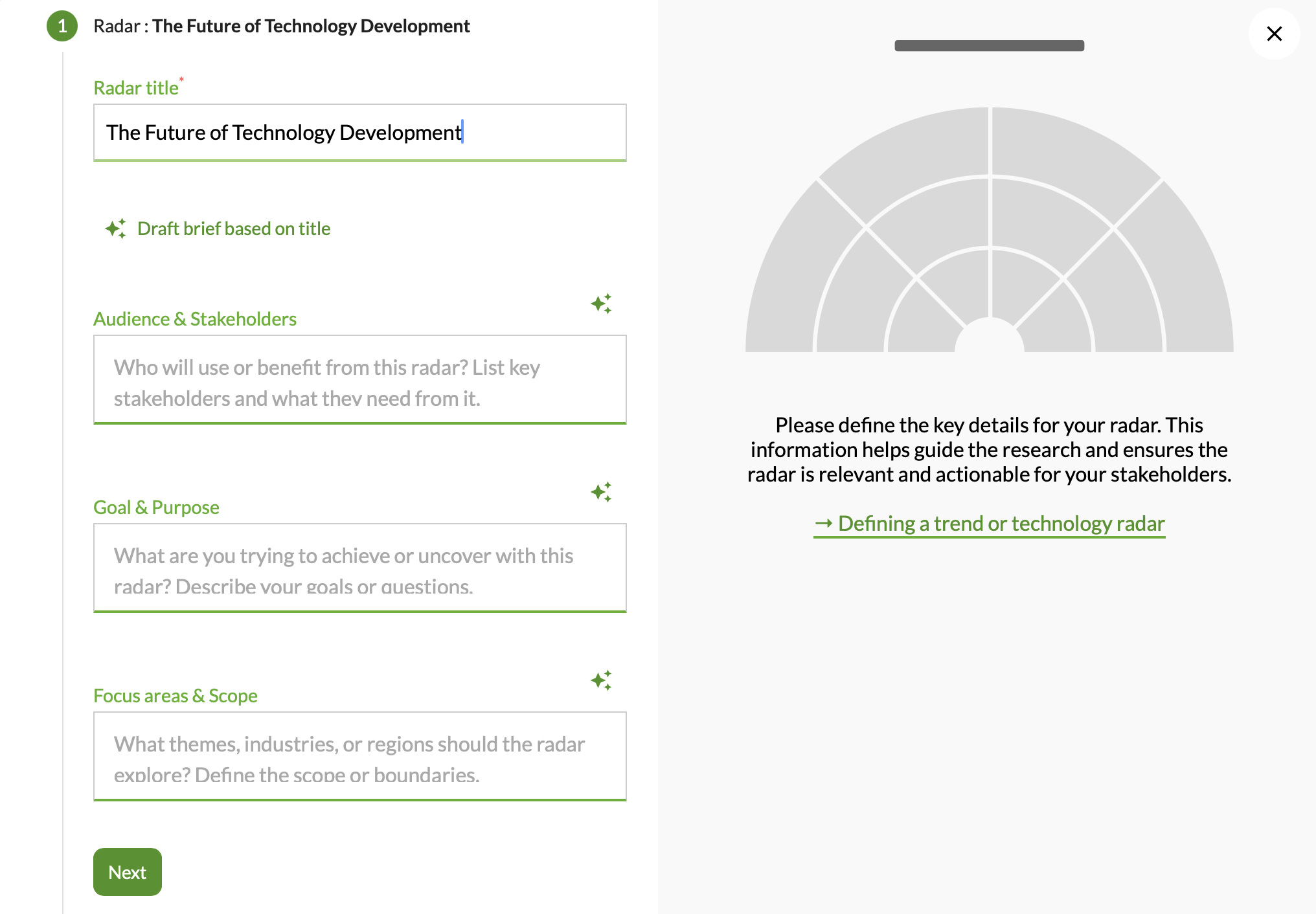
- Define your Radar Title, Audience, Goal & Purpose, Focus areas & Scope to give the Foresight Agents a clear objective.
- Please note: the more comprehensive and specific your description, the more accurate the final outcome will be. Providing clear context helps the Foresight Agents distinguish between general noise and the high-value signals truly relevant to your contect.
-
IMPORTANT: use the button Draft brief based on title for AI assistance.
.
- Move on to sketch your layout. Define your desired Radar sectors (e.g., PESTEL framework) and your horizon axis (e.g. calendar years).
- Please note when describing the sectors, the more comprehensive and specific your description, the more accurate the final outcome will be.
- Tip: use the button Suggest sectors based on radar brief for AI assistance.


- Bubble size and colors for findings are optional, but please feel free to use them too.
Step 3: Initiate the Foresight Agents
- Once your empty radar is created, a prompt will appear: "Looks like your radar is empty. You can start plotting items to it now. Or, do you want to have FIBRES Foresight Agents scan, sort, and fill it with insights?"
- Click "Yes, please" to engage the Foresight Agents.

Step 4: Build & define the Research Plan
- Optional: Use the Advanced settings to enter the countries or regions you want the Foresight Agents to focus on. The Agents consider sources and content discussing developments in or affecting those locations. A source may be published anywhere—what matters is the relevance of its content to the selected geographic focus. If you want a global view, leave this field empty.
- Choose which finding types you want to generate, such as Megatrends, Trends, or Technologies

- Use the "Get topic suggestions" tool to see Al-generated keywords based on your initial scope
- Review the suggested topics (keywords) for the overall research and specific sectors. You can delete and add new topics. Use short keywords rather than long sentences.

- Once topics are reviewed and approved, you can launch Foresight Agents to work by clicking Approve and start research.
- If you aren’t ready to start, you can save your current setup as a draft and return to it at a more convenient time.
- Please keep in mind that you can freely navigate and edit previous steps before approving the plan. However, once you click "Approve and start research," the plan is locked, and you cannot go back to the previous configuration steps for that project.

Step 5: Wait awhile and receive your results
- The Agents perform billions of relevance judgments across +200,000 sources in the background.
- This process typically completes within 60 minutes. If your research has not finished within this timeframe, please contact FIBRES Support for assistance.
- Once they are ready, you will receive an automated email notification once the population of your radar is complete. The notification includes statistics on the work done, such as keywords used, articles collected, and unique phenomena synthesized.
Step 6: Review and rework
- Return to your radar view to see the newly created radar and plotted findings.
- To explore the signals linked to any finding on the radar, navigate to the Linked items section of the Finding card. Please note that individual signals are not plotted directly on the radar.
- Check the Portfolios section to review 1) the radar's full summary and scenario analysis, and 2) a Signal Scanning report summarizing all the Signals collected..
- Check the Network view to explore linkages between findings.
- You can now manually refine, move, or edit any of the Agent-generated drafts to fit your specific needs.