
How to update radars with Foresight Agents
Availability: Foresight Agents are an advanced AI feature available on subscription. Not all plans include this feature. Note that only Administrator users can launch or update Radar automation.
If you have a radar that you wish to update or refresh with new data, you can use the Radar automation feature. This allows the Foresight Agents to scan for new signals and trends based on your specific research brief and provide you with fresh update suggestions.
Step 1: Access Radar Automation
- Navigate to the Radar view of the specific radar you wish to update.
- In the top toolbar, click the Manage dropdown menu.
- Select Radar automation from the list.

Step 2: Adjust and Update Your Research Brief
- The Agents use your brief to understand your "lens." You can update the following fields to give the Agents a clear objective:
- Audience & Stakeholders
- Goal & Purpose
- Focus areas & Scope
- If you do not wish to change anything, you can leave the fields as they are.
- Please note: the more comprehensive and specific your description, the more accurate the final outcome will be. Providing clear context helps the Foresight Agents distinguish between general noise and the high-value signals truly relevant to your contect.

- If you don't have an initial brief written or the text fields are currently empty, you can use the built-in AI assistance to write a brief:

- Click the "Draft brief based on title" button. The system will analyze your Radar Title and automatically populate the Goal, Purpose, and Scope fields for you.
- Once the AI has generated the draft, we recommend reviewing the text to add your own specific "Strategic Lens." You can add unique organizational goals or specific exclusions to ensure the Agents find exactly what you are looking for.
Step 3: Polish the Research Plan
- In the Advanced settings, you can fine-tune the scope of the update:
- Regions: Select specific geographic regions for your research.
- Content Types: Choose which finding types you want to generate (e.g., Megatrends, Trends, or Technologies).
- Update Topics: If you updated your brief in the previous step, use the "Get topic suggestions" tool to see new AI-generated keywords.
-
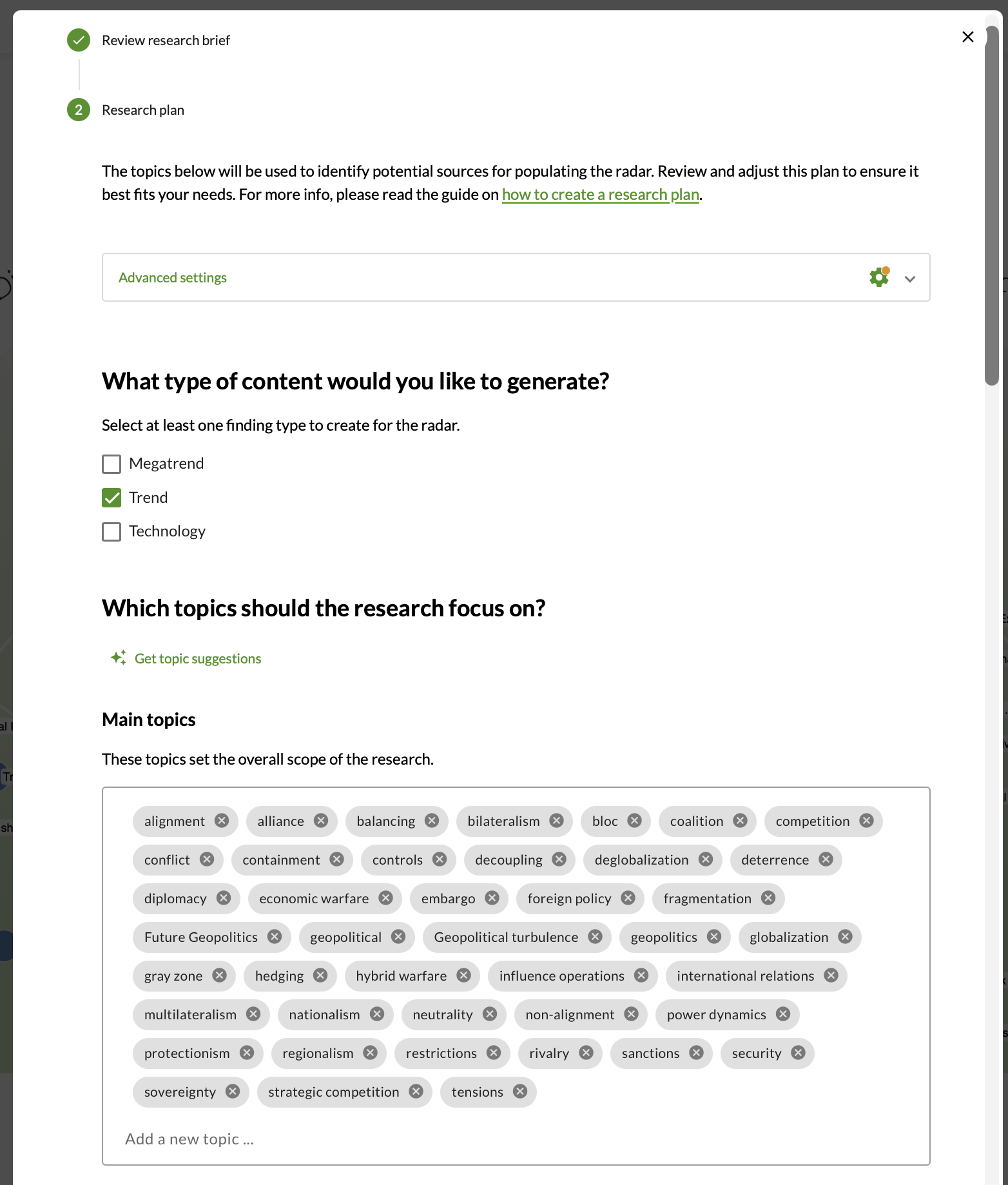
- Edit Keywords: Review the suggested keywords for the overall research and specific sectors. You can delete irrelevant ones or add new ones.
- Pro-tip: Use short keywords rather than long sentences for better results.
- Once the plan is reviewed, click Update radar to put the Agents to work. You can also click Save draft to return to this setup later.

- You can freely navigate and edit previous steps before approving the plan. However, once you click "Update radar," the plan is locked and the Agents begin their work. You cannot return to the configuration steps for this specific project.
Step 4: Wait for Results
- The Agents perform billions of relevance judgments across +200,000 sources in the background.
- This process typically completes within 60 minutes. If your research has not finished within this timeframe, please contact FIBRES Support support@fibresonline.com.
- Notification: You will receive an email once the update is complete. The notification includes statistics on the work done, such as keywords used, articles collected, and unique phenomena synthesized.
Step 5: Review and Validate Update Suggestions
Unlike a new radar project, updates for an existing radar are provided as suggestions for your review before they are officially plotted. This ensures you maintain full control over your strategic visualization.
- When the Foresight Agents have finished their background research, you will be notified within the platform:
- The bell icon in the upper right corner of your screen will appear orange.

- Clicking the bell opens a list where you can see the specific radar update. Select "Review updates" to begin.
- The Agents categorize their findings into two distinct groups:
- New Findings: Entirely new signals or trends that were not previously part of your radar.

- Updates to Existing Findings: New data points, descriptions, or signals that enrich the findings already visible on your radar.

- One-by-One Review: Click on a specific finding item to review its content. You can then choose to:
- For New Findings: Click "Add to radar" to plot it, or "Reject suggestion" to dismiss it.

- For Existing Findings: Click "Apply update" to merge the new information into your current finding card, or "Reject suggestion" to keep your original data and description.

- Bulk Actions: If you trust the automated research and wish to move quickly, you can use the global controls at the top of the review page:
- Apply all updates and additions: Instantly plots all new findings and updates every existing card.
- Discard all: Removes all pending suggestions at once.

- Even after applying updates, you can still manually edit, move, or refine any of the findings to perfectly fit your team's unique perspective.
Please note:
- One-Week Cooldown: You must wait at least one week before launching the next radar automation project on the same selected radar.
- Task Capacity Awareness: Launching a radar automation consumes your Foresight Agent task capacity. Please be mindful of how many tasks are included in your subscription and monitor your remaining capacity to plan your research cycles effectively.